Dots AI Review: OpenAI’s Always-On Agent Explained

By Olivia Hart
MyClaw Editorial
MyClaw
Run Best-in-Class AI Agents Now
Run OpenClaw or Hermes Agent on managed MyClaw hosting, so your AI agent stays online, updated, and ready for real work.
AI Takeaway
- What is OpenAI Dots AI? An always-on agent in ChatGPT that uses a cloud computer, connected apps, and saved context to carry work forward between conversations.
- Who can use it? Eligible Pro and Business Premium accounts, plus Enterprise workspaces with administrator enablement. Access is rolling out, with regional restrictions for Pro.
- Is Dots worth trying? Its strongest potential use is recurring work that changes over time: tracking deadlines, preparing updates, or following up on a project. A single, occasional question needs less coordination.
- What are the main limits? Work allowances, app permissions, and login interruptions still apply. Local tasks need your computer online; cloud tasks can continue while it is off.
- When should you consider MyClaw? When you want to configure an OpenClaw agent and have its hosting, maintenance, and backups managed for you.
What Is OpenAI Dots AI?
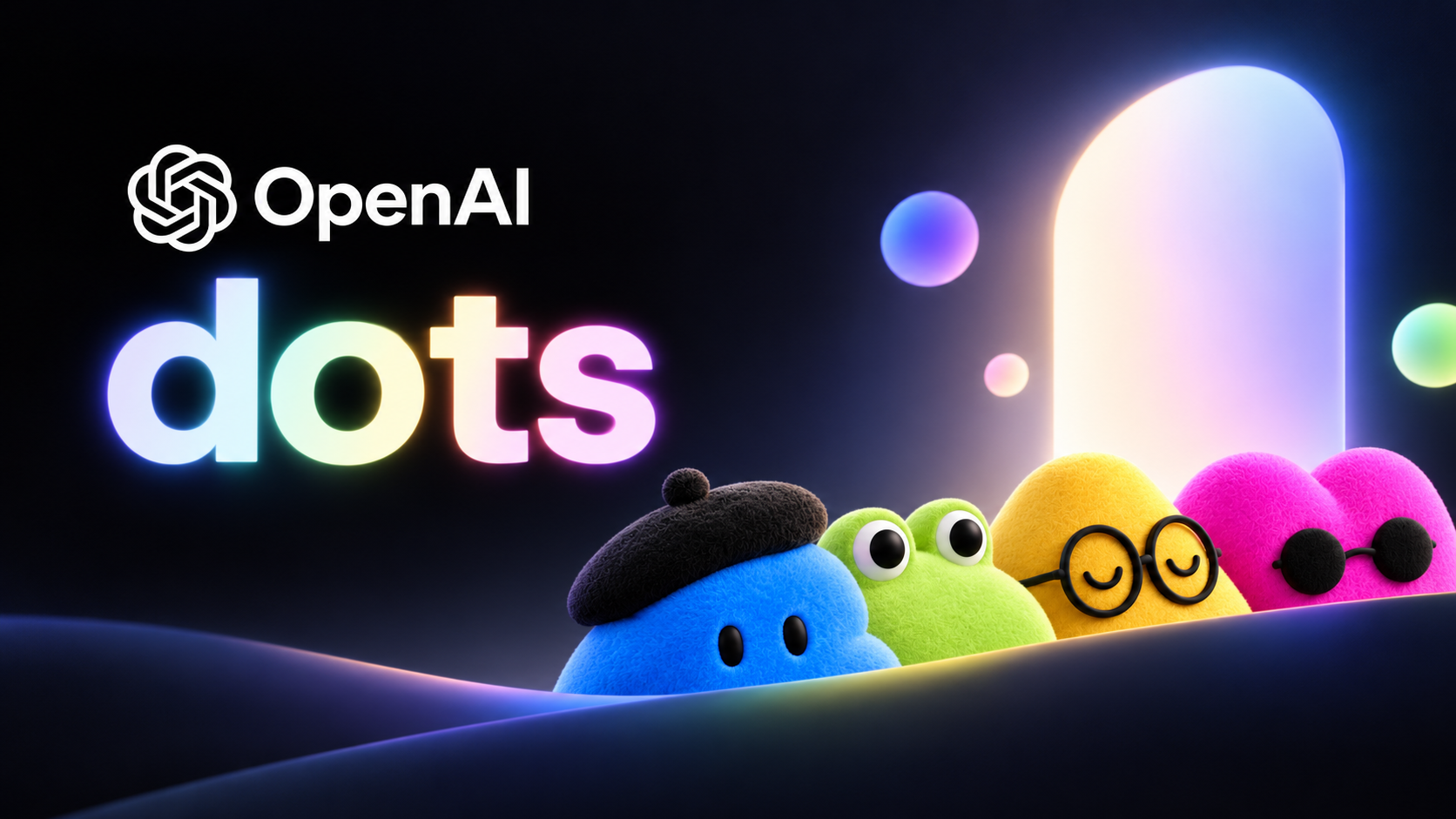
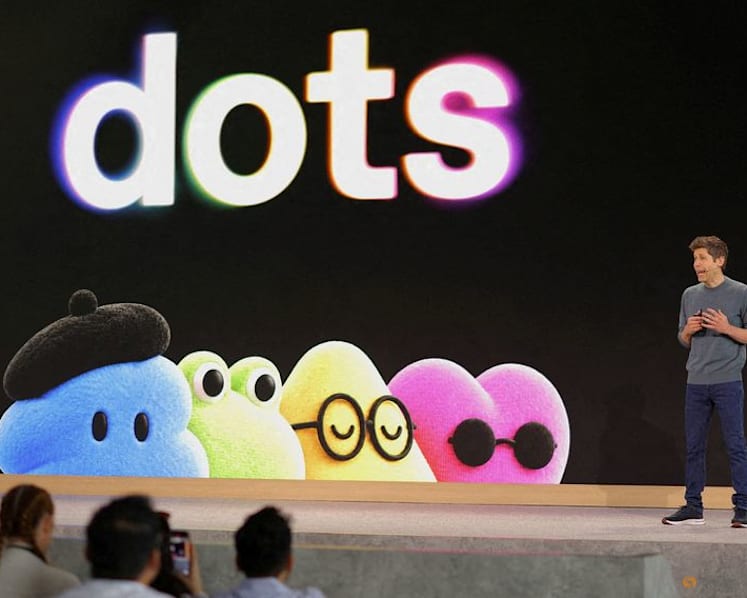
OpenAI’s Dots is an agent experience inside ChatGPT, powered by GPT-6 Astra. Each individual assistant—a dot—has its own cloud computer and browser for research, files, and running software. It is separate from the unrelated apps and services also named Dot or Dots.
You give a dot a responsibility and continue steering it as circumstances change. For example, it could track a project’s deadlines, prepare status updates, and bring unresolved decisions back to you. When a deadline moves, you can update the assignment without starting the entire discussion again.
ChatGPT already offers task and agent capabilities. Dots combines ongoing context, background work, and follow-ups in one assistant. When choosing an AI agent platform, that continuity matters most for jobs you would otherwise have to restart or check manually each day.
What Can Dots AI Do?
Continue Work Across Conversations and Tools
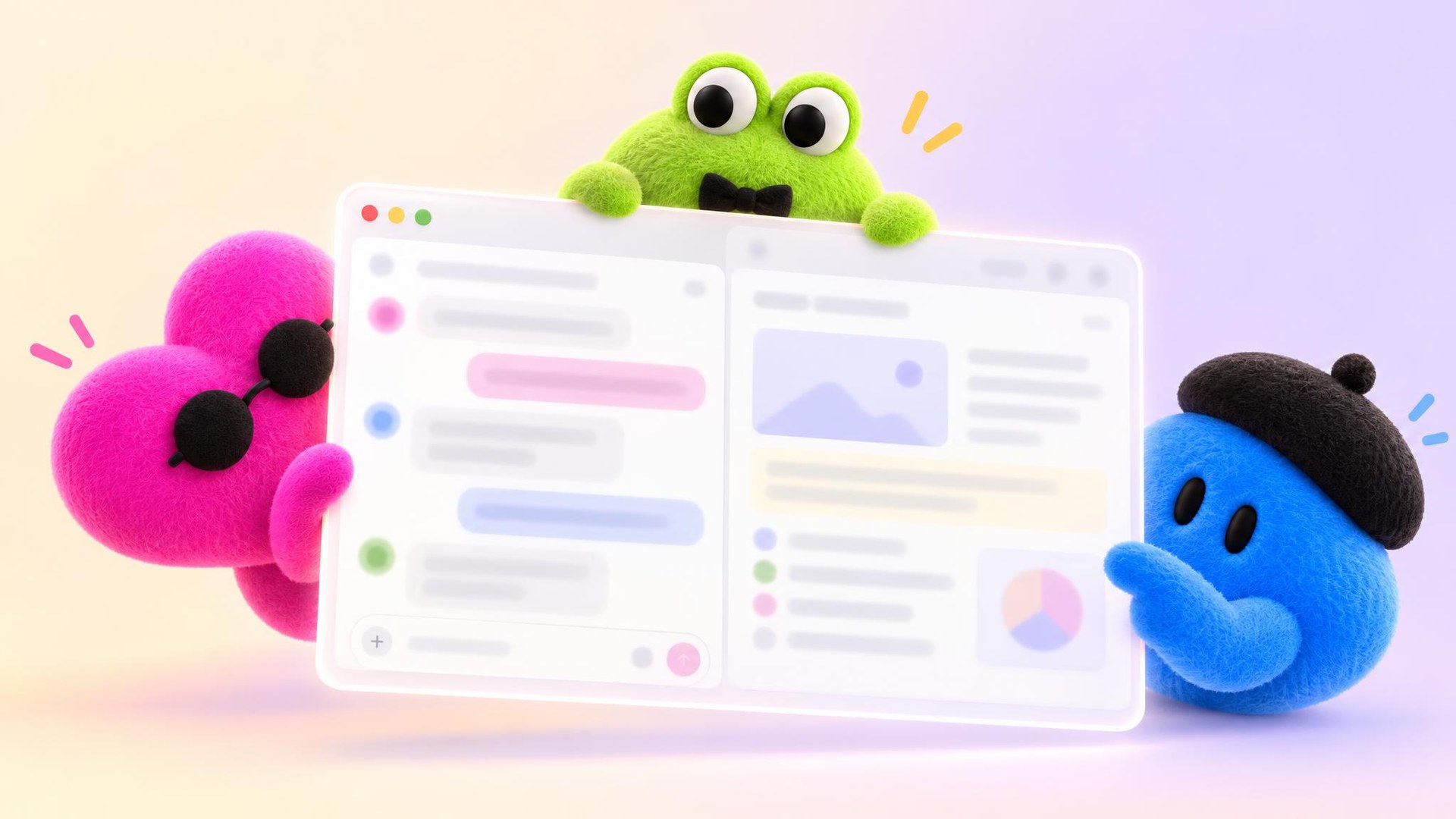
OpenAI documents research, data analysis, document preparation, and software development as supported activities. A dot can assign work to background agents while you keep discussing priorities. Its Activity view lets you inspect delegated tasks and their results.
It uses relevant ChatGPT memory and its own saved notes about preferences, decisions, and assignments. This gives later conversations useful context, though the notes are not a complete transcript of everything you have said.
ChatGPT, Slack, and Teams are supported ways to reach the same dot. However, connecting a messaging channel does not also grant access to your inbox, files, or computer. Each app connection has its own permissions. You can discuss a document in Slack while still needing to connect the service where that document lives.
Handle Recurring Tasks and Follow-Ups
Dots supports saved schedules, monitoring of supported events, and follow-ups it determines are needed during ongoing work. A daily project brief needs a confirmed schedule: source, reporting time, time zone, and delivery destination.
Event monitoring depends on the connected service and your instructions. Adding a dot to a Slack channel alone does not tell it which events to watch or when to notify you.
Dots can also research permitted information proactively. That research is read-only; any resulting action needs the applicable permissions. When planning a recurring AI workflow, define the difference explicitly: an agent may flag an overdue item in its report without being allowed to change the project’s deadline.
Dots AI Access, Pricing, and Setup
As of September 30, 2026, OpenAI lists these rollout conditions:
| Plan | Access conditions |
|---|---|
| Pro 100, 200, and 500 | Users over 18 outside the European Economic Area, United Kingdom, and Switzerland |
| Business Premium | Worldwide rollout |
| Enterprise | Worldwide rollout; disabled by default until an administrator enables it |
An eligible account may still be waiting for access.
The first dot is included at no extra charge with eligible Pro and Business Premium plans. A deeper-work allowance is included, with extended limits during the first month after launch. Dot conversations do not count toward ChatGPT usage limits, but Work or Codex tasks it starts or manages count toward those products’ limits. Check the allowance against your expected workload before relying on repeated background runs.
Create your dot in the ChatGPT desktop app or on desktop web. After setup, mobile-app access requires the supporting update. Creating a dot on mobile and using dots through mobile web are currently unsupported.
Dots AI Review: Strengths and Practical Limits
The Appeal: Continuity and Follow-Through
Dots’ most useful promise is less coordination work. If a project changes throughout the week, an assistant that carries forward decisions and checks for updates could reduce repeated explanations and manual follow-ups.
Based on its documented design, Dots is a strong candidate for responsibilities with changing inputs and outputs you can inspect: deadline briefs, research updates, or draft launch materials. Its added value is less obvious for occasional questions or a fixed reminder that already works reliably. The deciding factor is how much useful work it completes between your interventions.
To assess that, try a tracker with five known deadlines. Request a weekday report of overdue items, then change one date before the next run. Check the source used, reported exceptions, delivery time, and whether records stayed unchanged. Track usage and time spent correcting the result. That gives you evidence of workflow value beyond a convincing first answer.
The Limits: Availability, Local Access, and Stopping Work
Cloud tasks can continue while your personal computer is off. Tasks using your connected computer require it to stay online with the ChatGPT app open. Put the project source somewhere the chosen task environment can access.
Website logins, verification steps, and restrictions on cloud browsers can interrupt work. An unattended run may still need you to complete a sign-in or make a decision.
Stopping work also involves separate controls:
- Pause stops the dot’s current main task.
- Activity lets you inspect and stop delegated tasks.
- Scheduled lets you disable or delete recurring tasks.
Pausing does not cancel everything or undo completed actions. Custom rules can also be followed imperfectly, so pair instructions with appropriate app permissions. For workflows involving messages or shared records, use AI agent security practices such as limited access and review before consequential changes.
Run a Recurring OpenClaw Workflow With MyClaw
The same deadline-brief workflow can run through OpenClaw. MyClaw provides a private, always-on OpenClaw instance with managed hosting, automatic maintenance, and daily backups. You configure the agent’s job while the service handles its hosting.
The choice between managed and self-hosted OpenClaw concerns who operates the infrastructure. MyClaw is a way to run OpenClaw, not a hosting service for OpenAI dots. It is worth evaluating if you want an OpenClaw workflow without maintaining the server yourself. Connected models and services still process the data needed for their tasks; instance isolation does not make every operation local.
1. Launch an Agent for One Recurring Brief
Start a managed OpenClaw instance with one assignment: prepare the project owner’s weekday deadline brief. Define a useful result in advance: each flagged item should show its recorded deadline, owner, source, and what needs attention. Keep the first version small enough to check against the original tracker.
2. Connect the Sources and Set Boundaries
Connect the tracker and a supported messaging channel, such as Telegram. Give the agent a precise instruction:
List overdue items and items due within two working days. Include the recorded owner and source. Flag missing dates. Send the brief only to me; ask before editing records or messaging anyone else.
Configure the available tool permissions to match that scope. Instructions alone do not replace access controls.
3. Schedule, Check, and Refine the Results
Set the reporting time, time zone, and destination, then verify the saved schedule. Check a normal run and one containing missing information. Confirm that the brief arrived and matches the source. Review several runs and their model usage before adding more projects or broader permissions.
Should You Try Dots AI?
Try Dots first if your account is eligible and your goal is ongoing assistance within ChatGPT. Consider MyClaw if you want to build that recurring workflow around OpenClaw with hosting handled for you.
Compare the complete cost: Dots depends on subscription eligibility and work allowances; MyClaw hosting plans cover the runtime, with AI token usage separate. Allow for any promotional credits without treating them as unlimited usage.
Start with one responsibility for a week. Keep the option that consistently produces usable results with an acceptable amount of correction and expense.
Skip the Setup, Run Best-in-Class AI Agents Now
Launch a managed OpenClaw or Hermes Agent workspace in minutes, with always-on hosting, updates, and support handled by MyClaw.