Pixel Art Background Guide: How to Find, Make, and Use One

By Olivia Hart
MyClaw Editorial
Free Virtual Background Generator
Create a Pixel Art Virtual Background
Generate a custom pixel-art scene for video calls, streams, or games—online and free to try.
Generate a Pixel Art BackgroundAI Takeaway
- Should you download or create a pixel art background? Download a licensed asset when speed matters and the scene can be generic; create or generate one when the composition, palette, layers, or brand style must be unique.
- What makes a pixel art background usable? A consistent pixel grid, a limited palette, restrained contrast behind the subject, clear depth, and an export that scales by whole-number multiples without blur.
- What size should you start with? Match the final aspect ratio, work on a deliberately low-resolution base canvas, and enlarge with nearest-neighbor scaling at an integer multiple.
- Can AI make a usable pixel art background? It can produce strong concepts and useful drafts, but check for fake pixels, anti-aliasing, excessive colors, awkward seams, and flattened layers before using the result.
Choose the Right Route: Download, Draw, or Generate
| Route | Best when | Main advantage | Main risk |
|---|---|---|---|
| Download | You need a common scene quickly | Fastest route to a finished asset | License, style, or dimensions may not fit |
| Draw | Composition and placement must be exact | Maximum control over every pixel | Requires the most time and craft |
| Generate | You need a custom direction or several concepts | Fast exploration from a written brief | Output may imitate pixels without being technically clean |
A downloadable forest, sky, dungeon, or city can be ideal for a prototype. Confirm whether commercial use, modification, attribution, and redistribution are allowed; “free download” is not a license category. Check whether the asset includes separate layers, tiles seamlessly, and matches your aspect ratio.
Draw from scratch when exact placement matters: platforms must align, a title needs clear space, or scenery must frame a person or interface. Generate when you need a distinctive concept but not final pixel placement. The MyClaw AI Image Generator can help establish composition, lighting, and mood before cleanup.
What Makes a Pixel Art Background Work

Start With the Base Canvas, Not the Final Display Size
Choose the final aspect ratio first, then a low-resolution canvas that scales cleanly. A 16:9 scene should begin on a 16:9 grid rather than being stretched later.
Enlarge with a whole-number multiplier—2×, 3×, 4×, and so on—and use nearest-neighbor scaling. This duplicates each source pixel as a crisp block. A fractional scale or smoothing filter blends neighboring colors and produces the soft edges that make pixel art look accidental.
An AI model may return a large raster that only looks low-resolution. If you create a concept with GPT Image 2 in MyClaw, treat the requested base resolution as visual guidance unless the output has a verifiable, consistent grid. Set the true native size in a pixel editor.
Keep the Subject More Readable Than the Scenery
A background supports the subject; it should not fight it. Reserve the strongest light-dark contrast, sharpest edges, and most saturated accents for characters, speakers, titles, or interface elements. Distant scenery can use narrower value ranges, fewer hard outlines, and quieter color shifts.
Test the scene in grayscale. If the foreground subject disappears, changing hue alone will not solve the problem. Separate foreground and background values first. Then review the palette: a compact set of related colors usually feels more intentional than dozens of nearly identical shades.
A vivid neon city or glowing cave should still frame the focal area rather than fill every space.
Build Depth With Layers, Loops, and Clean Seams
For a scrolling game or animated scene, plan the sky, distant silhouettes, middle ground, and foreground as separate layers. Moving distant layers more slowly creates parallax depth without adding more colors or texture. Keep each layer complete enough to move without revealing holes. A static wallpaper or video-call background can remain flattened unless later animation is likely.
If the scene repeats horizontally, place copies side by side and inspect the join. Broken cloud shapes, doubled trees, and sudden value changes expose a loop immediately. Fix the seam early; detailed polishing only makes a structural mistake more expensive.
Build the Scene From Large Shapes to Small Pixels

Lock the Horizon and Focal Area
Start with the job the image must perform. Mark the playable path, horizon, title-safe area, speaker position, or streaming overlay before drawing scenery. A beautiful focal point in the wrong location can make the background unusable.
Use a few flat shapes to establish the visual path. If the composition works as silhouettes, it will survive texture; detail will not rescue a confused layout.
Block Color and Value Before Texture
Assign each depth layer a clear value range. Distant mountains might be lighter and less saturated; closer trees can be darker and more defined. This creates atmospheric perspective without blur, which often clashes with a crisp pixel grid.
Limit the initial palette and add a color only when it performs a distinct role. When a reference image defines the mood or layout, Nano Banana Pro in MyClaw can carry that reference into a new concept. Normalize the selected draft to a deliberate palette afterward.
Add Selective Detail, Then Test at Actual Size
Texture should describe form. Cluster leaves into readable masses, place highlights where a surface turns toward the light, and vary rock edges with purpose. Random single-pixel noise usually weakens the style and makes animation or recoloring harder.
Zoom out often and test the background behind its character, title, text, or webcam subject. Actual-size testing reveals problems hidden at 800% zoom.
Prompt an AI Pixel Art Background Without Fake Pixels or Blur
Use a Brief That Defines the Job
“Make a cool 8-bit background” leaves every useful decision unresolved. A stronger prompt defines the purpose, scene, visual era, composition, palette, aspect ratio, depth layers, empty space, and exclusions.
Use this structure:
Create a [purpose and aspect ratio] pixel art background showing [scene]. Use [8-bit, 16-bit, or specific visual direction], a [palette description], and [lighting]. Place [focal elements] at [location], keep [subject or text area] low contrast, and separate the scene into [layers]. Use crisp hard-edged pixel clusters. No gradients, anti-aliasing, text, watermark, or photorealistic detail.
For example: create a 16:9 side-scrolling forest at dusk with a restrained teal-and-amber palette, a clear ground path, low-contrast distant trees, and separate sky, mountain, forest, and foreground layers. Keep the center-left readable for the player character.
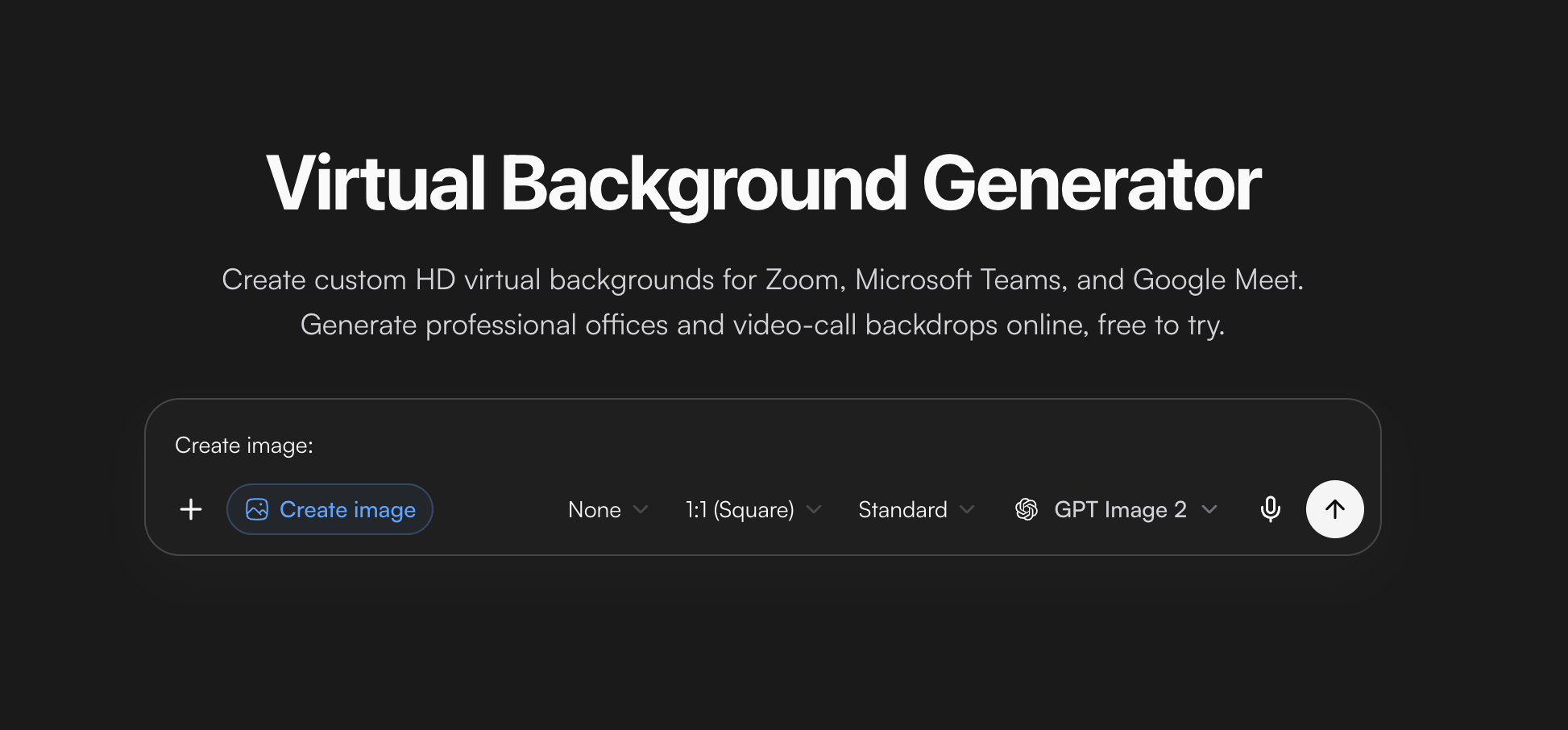
The MyClaw Virtual Background Generator provides an editable prompt workflow that can be adapted beyond a conventional office scene. Use it in three actions:
1. Open the tool and replace the template’s photorealistic directions with your pixel-art brief.
2. Generate variations while changing one constraint at a time, such as palette or horizon height.
3. Download the selected draft and inspect it in a pixel editor before production use.
The same clear space that keeps a person visible in a video call can hold a game character, title, streaming overlay, or interface panel.
Repair the Most Common AI Artifacts
Inspect the result at high zoom and actual size. Fake pixel art often has inconsistent blocks, soft diagonals, near-duplicate colors, warped repeated objects, or texture that ignores form. A beautiful preview can still be a poor asset.
Regenerate when the composition, perspective, or major objects are wrong. Edit the prompt and change only the failed constraint; the GPT Image 2 prompt and workflow guide explains why a structured brief is easier to reuse than a vague aesthetic request.
Use a pixel editor when the concept works but the execution needs a reduced palette, a consistent grid, repaired outlines, or a clean loop. Separate parallax layers manually if the generator returned one flattened image. If cleanup takes longer than rebuilding simple shapes, keep the generated image as a reference and redraw the asset.
Check the Background Before Export
Before shipping, confirm:
- The license covers the intended personal or commercial use.
- The native canvas and aspect ratio match the project.
- Every enlarged version uses an integer scale and nearest-neighbor resampling.
- Characters, text, and interface elements remain readable over the scene.
- The palette is controlled and anti-aliased colors have been removed.
- Looping edges join cleanly, with no duplicated landmarks at the seam.
- Parallax layers have complete edges and the required transparent areas.
- PNG transparency, color mode, filenames, and platform or engine settings are correct.
- The background has been tested in context, not only viewed by itself.
Download when speed matters and an existing style fits. Draw when placement and pixel-level control are essential. Generate when you need a custom direction quickly, then budget time for technical cleanup. For recurring work, a reusable workflow such as the Nano Banana Pro image-generation skill can standardize prompt fields, filenames, and output checks while keeping final approval human.
Generate a Pixel Art Background with MyClaw
Create a custom 16:9 pixel-art virtual background for Zoom, Teams, Meet, streams, or games. Free to try.
Generate a Pixel Art Background