Best Random Background Generators (Free & AI)

By Julian Brooks
MyClaw Editorial
MyClaw
Run Best-in-Class AI Agents Now
Run OpenClaw or Hermes Agent on managed MyClaw hosting, so your AI agent stays online, updated, and ready for real work.
AI Takeaway
- Which generators belong on a shortlist? Mix by job: AI meeting-backdrop tools (including MyClaw’s Virtual Background Generator), in-browser pattern and CSS generators, and random background image APIs for placeholders.
- Zoom, Teams, or Meet? Compare AI backdrop tools on 16:9 output, headspace, download quality, and free-try honesty. MyClaw is one option at 1536×864 with limited guest generation.
- Web UI patterns? Pattern Monster, Hero Patterns, or BGJar-style tools fit seamless tiles better than a video-call room.
- Mockup photos? Lorem Picsum-style APIs work for WxH placeholders, not for a composed meeting scene.
- MyClaw surfaces? Virtual Background Generator for call scenes; Image Generator hub for other styles. No separate “random-background” product page.
Random Background Generators Compared
A random background generator can mean three different products on the SERP. Score every option the same way: job fit, aspect ratio, headspace when a person is on camera, download quality, and free-try honesty. A CSS tile maker, a placeholder photo API, and a Zoom backdrop tool are not interchangeable just because they share the word “background.”
| Generator | Best for | Free try / access | Typical output |
|---|---|---|---|
| MyClaw Virtual Background | Custom Zoom / Teams / Meet scenes | Limited guest try; AI Chat plans | 16:9 HD (1536×864) |
| MyClaw Image Generator hub | Other creative / wallpaper-style images | Shared guest try | Model-dependent |
| Pattern / CSS generators (Pattern Monster, Hero Patterns, BGJar-style) | Tileable web UI | Usually free in-browser | CSS / SVG / PNG |
| Random photo APIs (Lorem Picsum-style) | Placeholders / mockups | Usually free hotlink | JPG by width × height |
| Other AI meeting tools (Pippit, Backdropify, ConnectMachine-style) | Prompt-to-Zoom backdrops | Varies (signup / watermark) | Often 16:9 |
Pick the row that matches the job, then dig into that category. Re-check each site’s current free path before you plan a weekly workflow around it. A short shortlist beats a long bookmark folder of tools that solve different problems. The sections below stay inside one category at a time so the comparison does not turn into a feature dump.
AI Meeting Backdrop Generators
For a custom Zoom, Microsoft Teams, or Google Meet scene, you want a 16:9 image with believable depth and clear space for your head and shoulders. Prompt-to-backdrop tools such as Pippit, Backdropify, and ConnectMachine-style makers sit in this lane alongside MyClaw. Ask the same questions of each: does it export a widescreen file you can upload, does the composition leave room for you on camera, and is the free path clearly limited or watermarked?
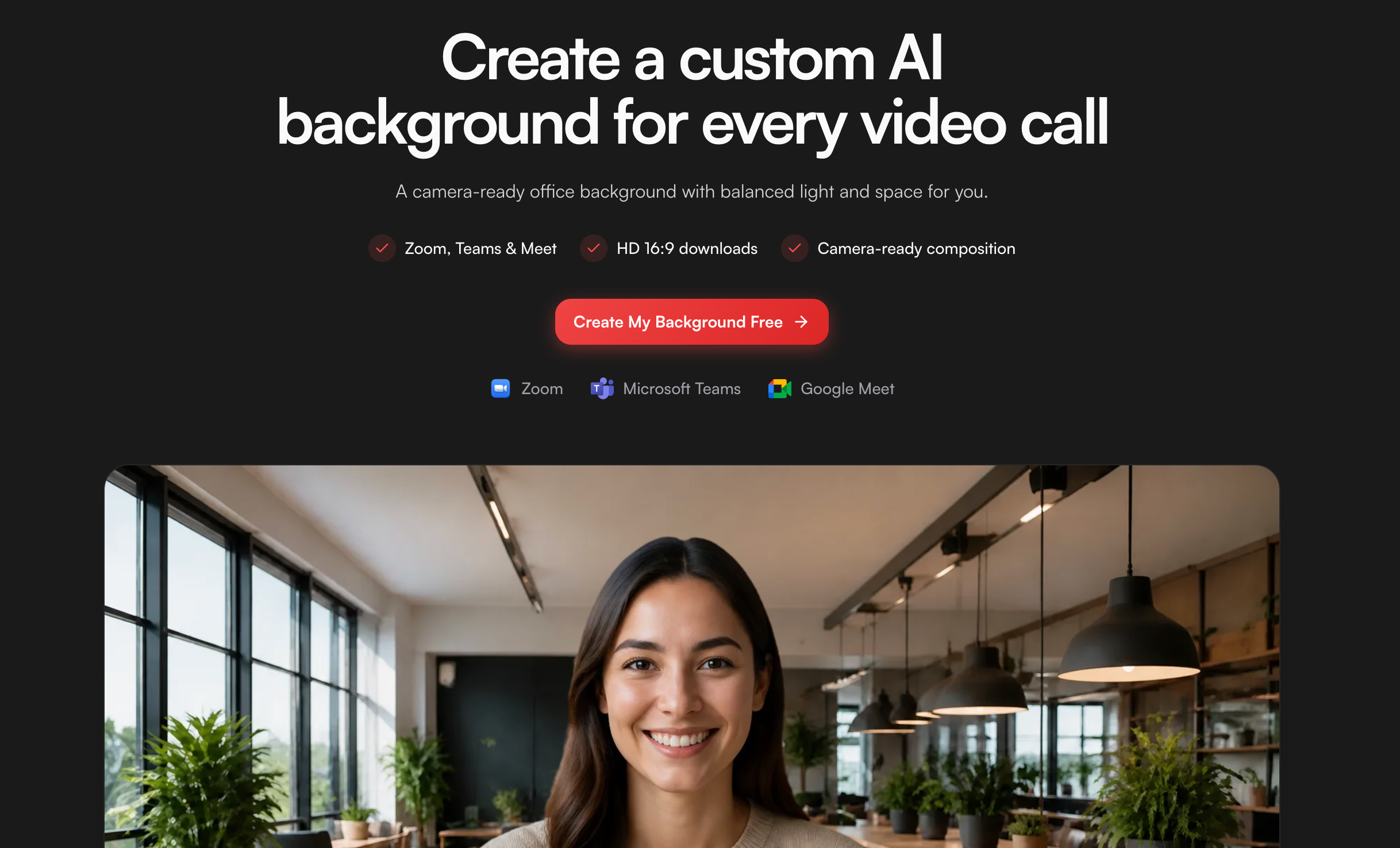
MyClaw’s Free AI Virtual Background Generator for Zoom, Teams & Meet generates custom HD scenes at 16:9 (1536×864). Limited guest image generation is available without a credit card; paid AI Chat plans cover broader image generation. That puts it in the same category as the peer AI meeting tools above, not with pattern tile makers or random stock hotlinks. Download the file, then add it through each app’s background or visual-effects settings. Controls and file rules still vary by platform, account, and device.
Peers often compete on branded logos, template galleries, or one-click 1920×1080 downloads. Weigh those extras against export clarity and how easily you can iterate the room description. A tool that looks fine in a gallery can still fail once your silhouette sits in front of busy furniture or bright text. Match lighting to your face, skip readable logos you did not intend to show, and test on the same camera you use for work. Eye-level perspective, moderate depth, and an uncluttered band behind the shoulders usually read better than dramatic props. If two meeting tools both pass that checklist, keep the one whose export settings and iteration speed fit your weekly call load.
Pattern and CSS Background Generators
Pattern Monster, Hero Patterns, BGJar-style apps, and similar SVG or CSS pattern makers fit seamless tiles for a site, dashboard, or slide. You pick a motif, tune colors and density, then copy CSS, SVG, or a PNG tile. The result stays light, scalable, and repeatable without hosting a heavy photo.
They are a poor stand-in for a video call. Busy repeats fight edge detection, the aspect ratio is often wrong for a camera feed, and there is no composed room behind you. If you want a designed scene rather than tile noise, a pixel art background guide is closer to art direction than a CSS pattern shuffle. Use pattern generators for UI texture; use meeting AI tools when a person has to sit in front of the image. Shuffle buttons help when you only need fresh web texture, not a believable office. Export a small tile first, preview it at full-bleed width, then decide whether the repeat is quiet enough for the page. Brand-color swaps matter more here than photoreal furniture.
Random Background Image APIs
The variant query “random background image” often points at placeholder APIs such as Lorem Picsum: paste a width and height, get a JPG, and move on. Seeded URLs keep the same placeholder across reloads. That is useful for mockups, layout tests, and quick inspiration pulls.

On a live call those images can fail. Midtones get busy, strangers or text appear behind you, and a random crop rarely leaves clean headspace. Licensing and attribution also differ by provider, so treat hotlinked photos as development assets until you confirm reuse terms. A random background image API is still a valid generator for placeholders. It is not interchangeable with an AI meeting backdrop prompted for an office, studio, classroom, or café with space reserved for the speaker. If you only need a temporary hero image in a prototype, keep the API; if colleagues will see you on camera, switch categories. Blur or grayscale can soften a mockup; they still do not create a camera-ready room. Confirm size and file type before you drop the image into a production layout.
How to Try MyClaw’s Virtual Background Generator
Other tools have their own UIs. For the MyClaw meeting option, the path is short.
Step 1: Open a Meeting Scene or Write a Prompt
Open the Virtual Background Generator. Pick a ready meeting scene or describe the office, studio, classroom, or café you want, including lighting, mood, and clear space behind you.
Step 2: Generate and Adjust
Generate a 16:9 backdrop. MyClaw outputs 1536×864 in that ratio, which matches common widescreen framing used with examples such as 1280×720 and 1920×1080. Edit the prompt if furniture, colors, or headspace need a tweak, then generate again.
Step 3: Download and Test on Camera
Download the HD image and upload it in Zoom, Teams, or Meet background settings. Check that your outline stays clean and that lighting roughly matches your face. Usually you do not need a green screen on modern desktop Zoom, Teams, or Meet with supported hardware, but a plain real wall still helps edge detection. When a guest allowance is used, continue under the AI Chat plans shown on MyClaw pricing.
Which Generator Should You Use?
Match the random background generator to the job:
- Custom Zoom / Teams / Meet scene — AI meeting backdrop generators (MyClaw Virtual Background or peers such as Pippit, Backdropify, or ConnectMachine-style tools).
- Website pattern or CSS tile — Pattern and CSS generators.
- Mockup or placeholder photo — Random background image APIs.
- Other creative wallpaper — Start from the Image Generator hub. Sibling templates such as the album cover generator and tattoo generator fit creative art jobs, not a call backdrop.
Re-check free-try limits, export size, and on-camera headspace before you commit a weekly workflow to any one generator. If two AI meeting tools both clear your checks, choose the one whose iteration loop and export settings fit your team’s apps, not the one with the loudest landing page.
Conclusion
A useful shortlist mixes AI meeting-backdrop generators, pattern and CSS tools, and random photo APIs. MyClaw’s Virtual Background Generator is one meeting-backdrop option among those peers, with a 16:9 1536×864 export and a limited guest try, while pattern tools and image APIs stay better for web tiles and placeholders. Pick by job, verify the live tool pages, and test the file on camera before you reuse it every week. That keeps the keyword honest: you are choosing a generator that fits the work, not forcing one product type to cover every background task. Save the exports you approve, note the prompt or pattern settings that worked, and only then scale the same choice across a team. Keep the shortlist to one tool per job so the next person does not reopen the same SERP from scratch.
Skip the Setup, Run Best-in-Class AI Agents Now
Launch a managed OpenClaw or Hermes Agent workspace in minutes, with always-on hosting, updates, and support handled by MyClaw.